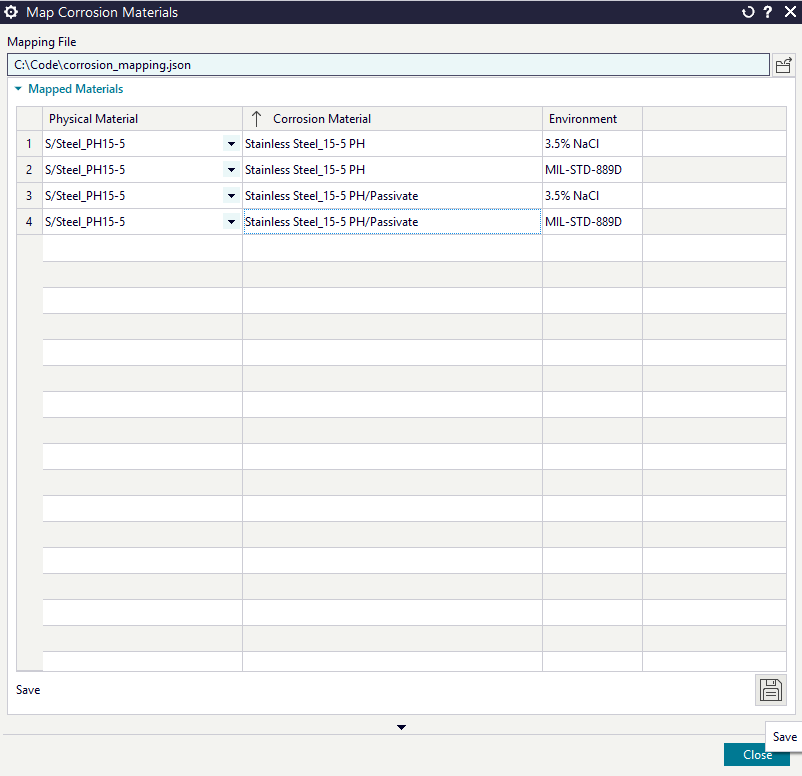
Mapping Materials
Documentation Version - NX 2506
This documentation is designed for NX Version 2506. The documentation will aim to always keep up to date with the latest version of NX.
Background
The Corrosion Djinn database holds electrochemical data for over one hundred materials in the MIL-STD-889D & 3.5% NaCl environments.
Not all of the materials that are in the Corrosion Djinn database exist in the default material libraries provided with NX, additionally customers can create their own materials or use integrations to get their material data from other sources such as using Teamcenter's IMM (Integrated Material Management).
Because of this there exists a mapping function for the NX Corrosion Risk Analysis module that allows the user to map their materials to materials that are in the Corrosion Djinn database.
Enabling Mapping
Important
The most important steps before mapping any new materials are to:
- Verify that Allow File Editing is enabled.
- Check the path of the mapping file that is currently being used for your operating system.
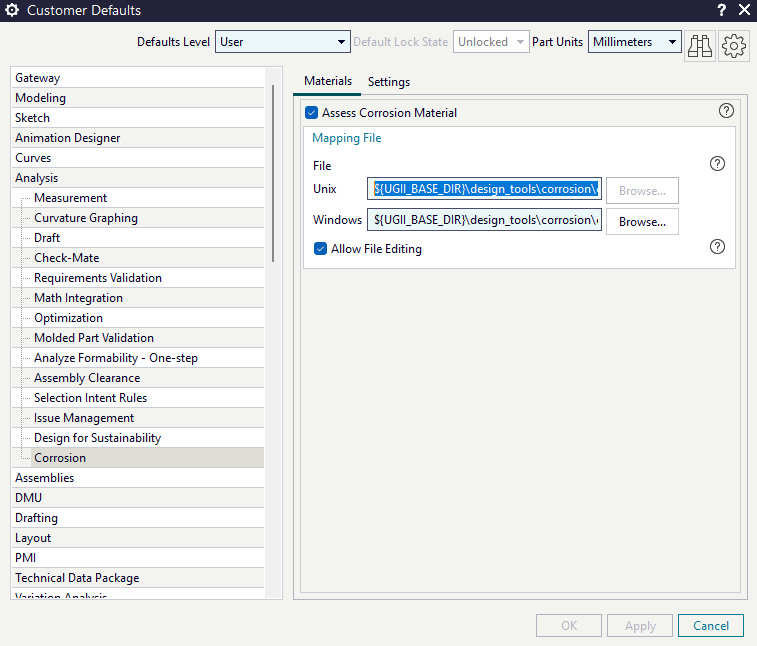
The following steps show how to enable mapping:
- File > Utilities > Customer Defaults
- Analysis > Corrosion
- Check Allow File Editing
- Verify the Mapping File has the file path set to the mapping file that you are editing.
Changing the mapping file location
If you change the path of the mapping file that is being used for your operating system you will need to restart NX.
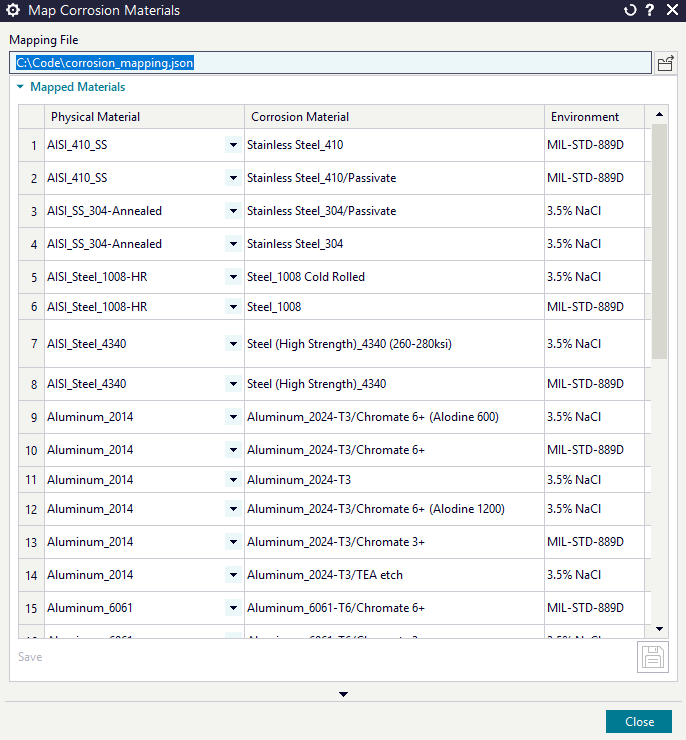
Mapping Materials
To map additional materials follow the following steps.
- In the search bar search for Map Corrosion Materials
- Verify the Mapping File is the same Mapping File that you are using in Customer Defaults so that both files have the same path.
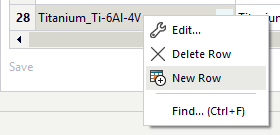
Adding a new mapping
- Right click any of the existing data rows and select New Row.
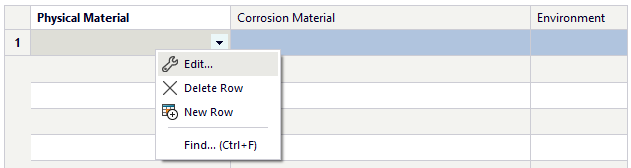
- Right click the empty cell in the Physical Material column and select Edit.
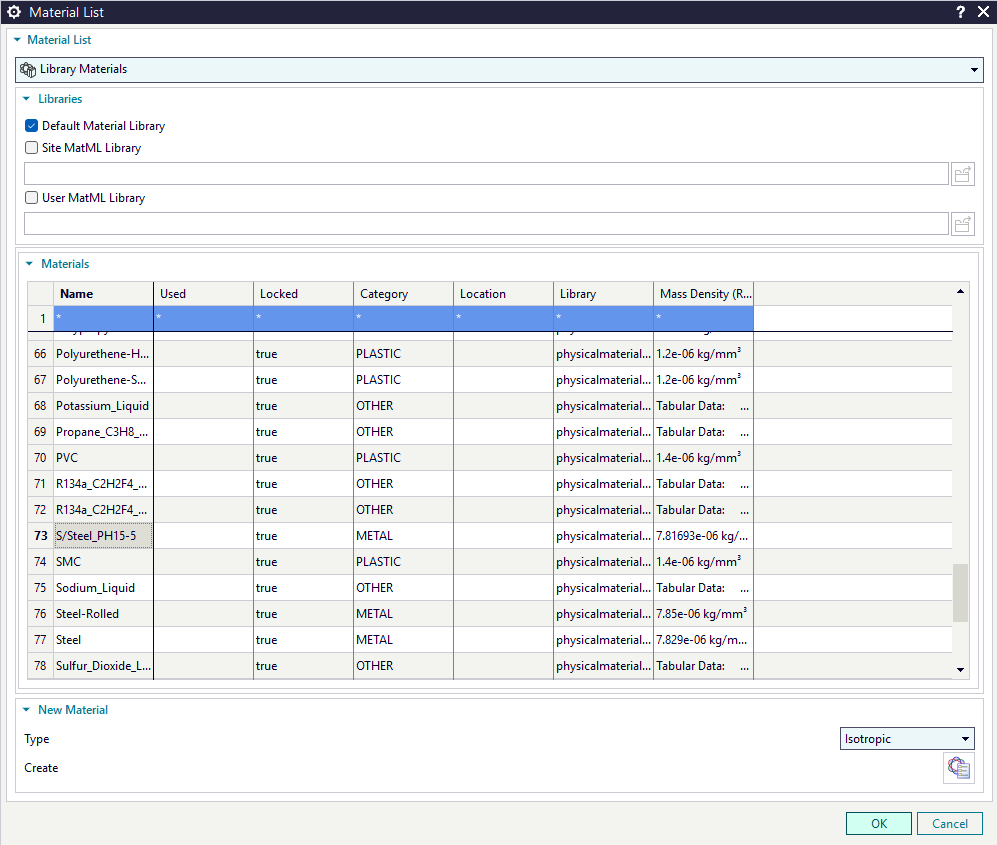
- Select the Physical Material you want to map from the Material List dialog.
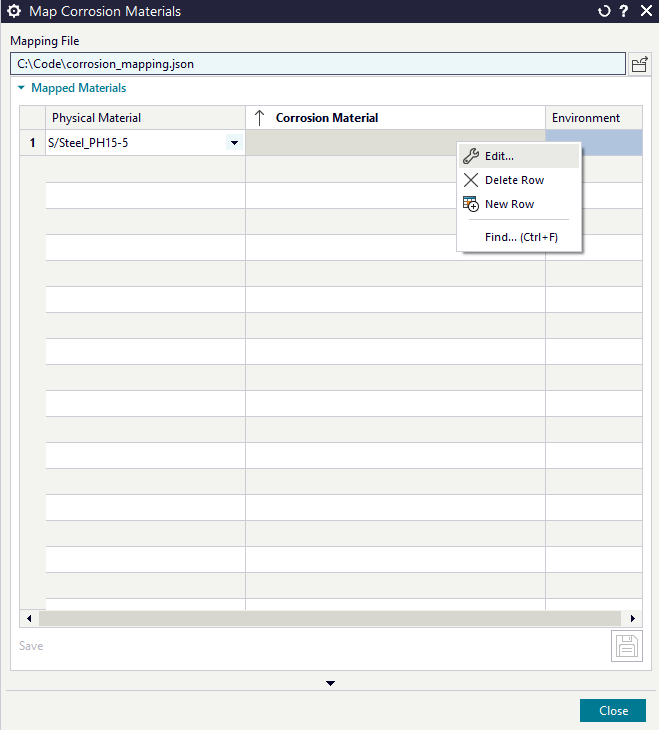
- Right click the empty cell in the Corrosion Material column and select Edit.
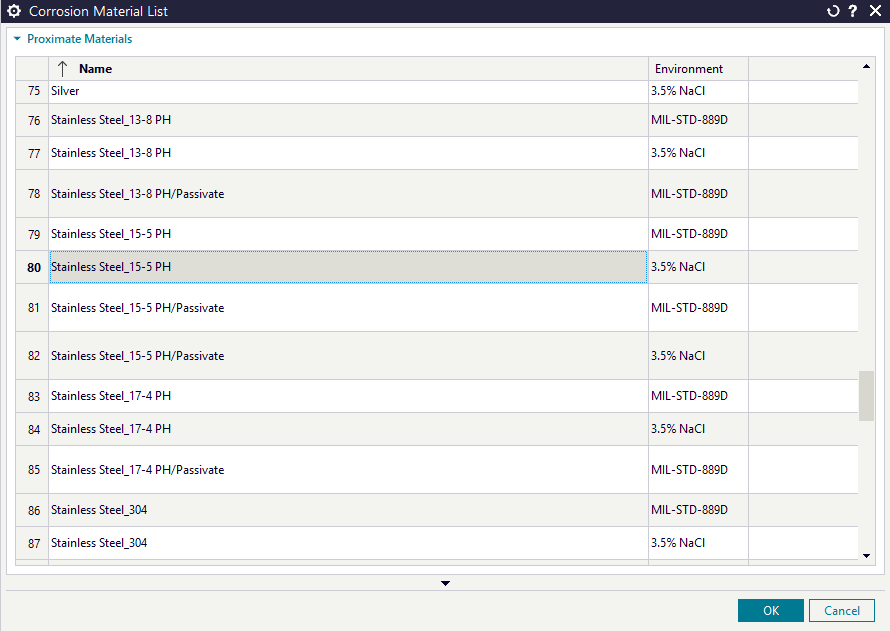
- Select the most appropriate Corrosion Material from the list in the Corrosion Material List dialog. This is list can be sorted by Name.
Mapping To Multiple Environment
When you're mapping materials, each material can have a unique environment so we recommend mapping to each of the available environments on new rows.
Mapping To Multiple Materials
You can map a Physical Material to multiple different Corrosion Materials this can be useful if you want to test different versions of materials such as Anodized versions of the material.
- Once you've mapped all the materials you require click Save.