Deployment Guide
Dependencies
Internet Information Services
Hosting Corrosion Djinn Standalone on Windows requires using Internet Information Services (IIS)
Warning
Ensure Internet Information Services (IIS) is enabled before setting up .NET 10 hosting bundle as it is required to set up .NET 10 hosting features inside of IIS.
Enabling Internet information Services
-
Open Turn Windows features on or off.
-
Check Internet Information Services if this is not already selected.
-
Expand World Wide Web Services
-
Expand Application Development features
-
Check WebSocket Protocol Click OK
You may need to restart the device to enable this feature.
Info
If WebSockets are not enabled you may experience performance issues with the application when using a large number of connections.
.NET 10
Corrosion Djinn uses the .NET Runtime.
On Windows, we recommend installing the Hosting Bundle, which includes the .NET Runtime and Internet Information Services (IIS) support. Do this after enabling IIS
The latest .NET 10 release can be downloaded from the official .NET download page.
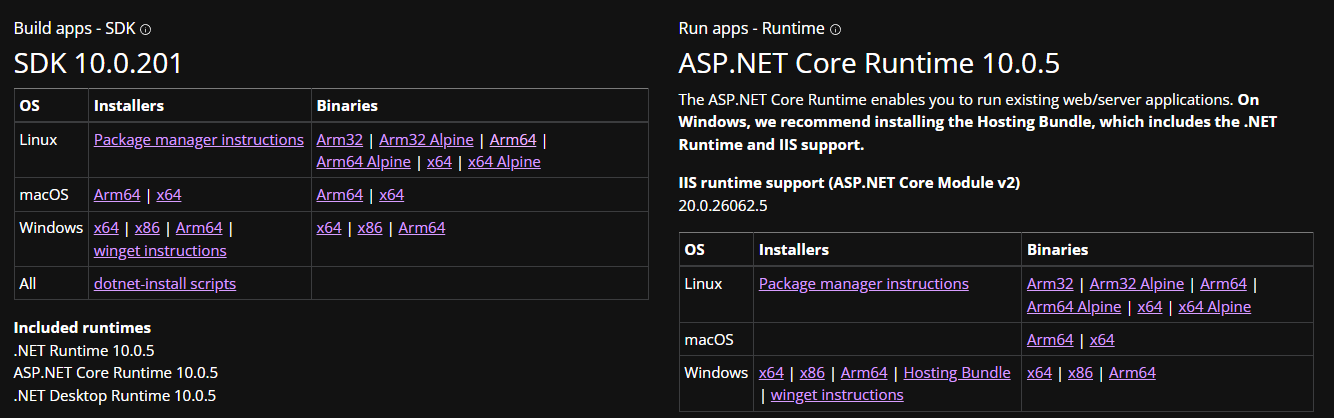
Corrdesa aims to release any security patch version updates to Corrosion Djinn as soon as possible for packages, but as these changes primarily affect the runtime Windows Update will automatically attempt to update this feature to maintain security updates.
The .NET Core runtime is used in a wide range of applications such as mobile, cloud and desktop, as such it is possible that the vulnerabilities in .NET 10 that have been patched are using libraries and features that are not related to or being used by the Corrosion Djinn application.
Any security patch version updates that maintain the same major version 10.x.x that are downloaded should work without any changes to the application as the application is provided framework-dependent.
SQL Server
Corrosion Djinn supports using a Microsoft SQL Server database, the application has been tested using SQL Server 2022 express and Azure SQL Database.
You can download SQL Server below if you don’t have a database server setup already. We recommend using the Express version.
Creating the Database User
Corrosion Djinn Will need a database user setting up to create the database, connect to the database and update data in the database automatically.
If you don't have experience with using the command line to interact with the SQL Server database we recommend using SQL Server Management Studio (SSMS) to setup and create the user that application will use and interact with the database.
SQL Server Management Studio
Download SQL Server Management Studio (SSMS)
After you have installed SQL Server Express and SQL Server Management Studio (SSMS) we can now setup the user that Corrosion Djinn will use.
-
Open SQL Server Management Studio (SSMS).
-
If you have just setup SQL Server instance the login details for the SQL Server that were just setup should automatically be populated using Windows Authentication to access the server. If you are using a SQL Server instance that has already been setup you may need to request the login details or request the administrator sets up a user to create the database and provides you with the details.
-
Click Connect
-
Right Click your server/instance name in the Object Explorer on the left. Click Properties.
-
Click Security. Check.SQL Server and Windows Authentication mode. Click OK.
-
Expand Security in the Object explorer. Right click on Logins. Click New Login.
-
Enter corrosiondjinn under Login Name.
-
Enter a randomly generated password for the user under Password and Confirm Password. This password will be needed later when adding the configuration to the application.
-
Uncheck Enforce Password Policy.
-
Click Server Roles. Check sysadmin. Click OK.
We have now created the user. The application will automatically setup the database if the user has sufficient privileges
Warning
If Enforce Password Policy is not disabled for the user on SQL Server the password will automatically expire making the application unusable until the password has been updated.
Configuring Internet Information Services (IIS)
-
Extract the applications files to a location that can be accessed on you device by IIS such as C:/djinn where you will have no permissions issues.
-
Open and update the appsettings.json file to connect to your database server.
-
In the ConnectionStrings section. Update the SERVERNAME to the server that shows in SSMS when connecting this is usually the name of the device/server. Update the DATABASE to anything you would like such as CorrosionDjinn. Replace the USERNAME with the username that you created in the database and the same for the PASSWORD.
Warning
If the server name contains a backslash such as my-network\my-device you need to add a second backslash to ensure the file can be read correctly so it would read my-network\\my-device instead when entering the data.
-
Save the file.
-
Open the Internet Information Services (IIS) Manager.
-
Expand your Server in the Connections Window on the left.
-
Right click the Sites label and click Add Website.
-
Enter a Site name (e.g. Corrosion Djinn)
-
Under Physical Path click the three dots to browse for a folder location.
-
Browse for the location you extracted the application to and click OK.
-
Under the Binding section enter a port that you want the application to be served from
- IIS comes with a express development certificate that will let you use https, if you have another certificate you may need to add it at this step.
-
Once you're happy with the configuration click OK.
If you have installed the .NET 10 Core runtime and have setup the database connection string in the appsettings.json file the application should now be running and being served.
After making any changes to the appsettings.json or web.config file restart the site by selecting the site in the Sites menu and selecting Stop and then Start under Manage Website.
Any issues that may be preventing the application from running will appear in the Event Viewer under Windows Logs -> Application.
Warning
If when running the software you are seeing an issue with IIS for file permissions accessing web.config you may need to update the folder permissions to allow the IIS APPPOOL user to access the web server.
System Usage
for the first time using the system you will need to provide a MAC address for the server so that we can provide a license for the file for the server.
-
Open command line/terminal.
-
Type ipconfig/all then press enter.
-
Scroll to the top and copy the MAC address for the device ideally for an adapter that wont change for the device such as ethernet port.
-
Send Corrdesa the MAC address to receive a license file that will only work on that device alongside a Product Key to run the software.
First Time Login
When you first login to the system you will be prompted to setup your license. You will need to drag the license file you were provided to into the box or browse for the file and enter the product key you were provided.
If the MAC Address provided matches the MAC Address assigned yo the license file and the product key matches, the license will be accepted and stored inside the database.
After you have successfully setup the license file you will be required to setup an Admin user, if you are not redirected to create an admin user navigate in the browser to website/license/admin-setup.
Enter a name, Email address and password for the admin user. The system will not send out any emails but uses valid email address formats as the usernames for any users.
If you forget the admin login details you will need to delete the database and re add the license file in order to access the system.
User Roles and Access
Administrator
This role can also view the current license that is in the system and allows the user to delete the current license.
This feature allows the administrator ro import a new license file containing any new materials and/or extend the expiry date of the license.
User
The user role is the default role provided to all system users that allows users to run analysis and access materials in the system but not create materials, electrochemical properties or delete and materials or electrochemical properties.