Setup
When the license server is running via service or manually running the executable you'll be able to access the application in your browser.
The Flexnet Publisher (lmadmin) application allows you to manage your licenses for flexnet publisher enabled applications. In the administration section you will be able to add new licenses and see the usage of the licenses you have activated.
The licenses are served by a Vendor Daemon - CORRDESA.exe - that is used by the license server to verify and manage your vendor associated licenses
Adding the vendor daemon
The Vendor Daemon (CORRDESA.exe) needs to be added to the installation folder of the license server, NOT the data folder that was set during installation.
The default location for this on Windows is: C:\Program Files\FlexNet Publisher 64-bit License Server Manager
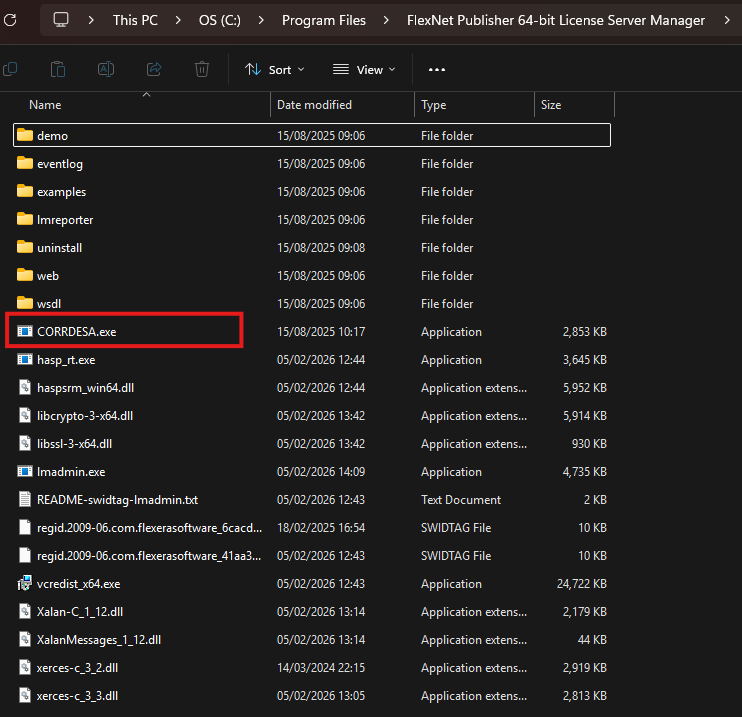
The Vendor Daemon (CORRDESA.exe) needs to be added to the installation folder of the license server, NOT the data folder that was set during installation.
The default location for this on Windows is: C:\Program Files\FlexNet Publisher 64-bit License Server Manager
Adding a license
When you first open lmadmin you will see the below User Interface, Under the Licenese section you will be able to see your activatable and Concurrent Licenses. In the Concurrent licenes section you will see your licenses provided by Corrdesa once you have uploaded the license.
The alerts section will alert you of any issues with the vendor daemon or any licenses you're using.
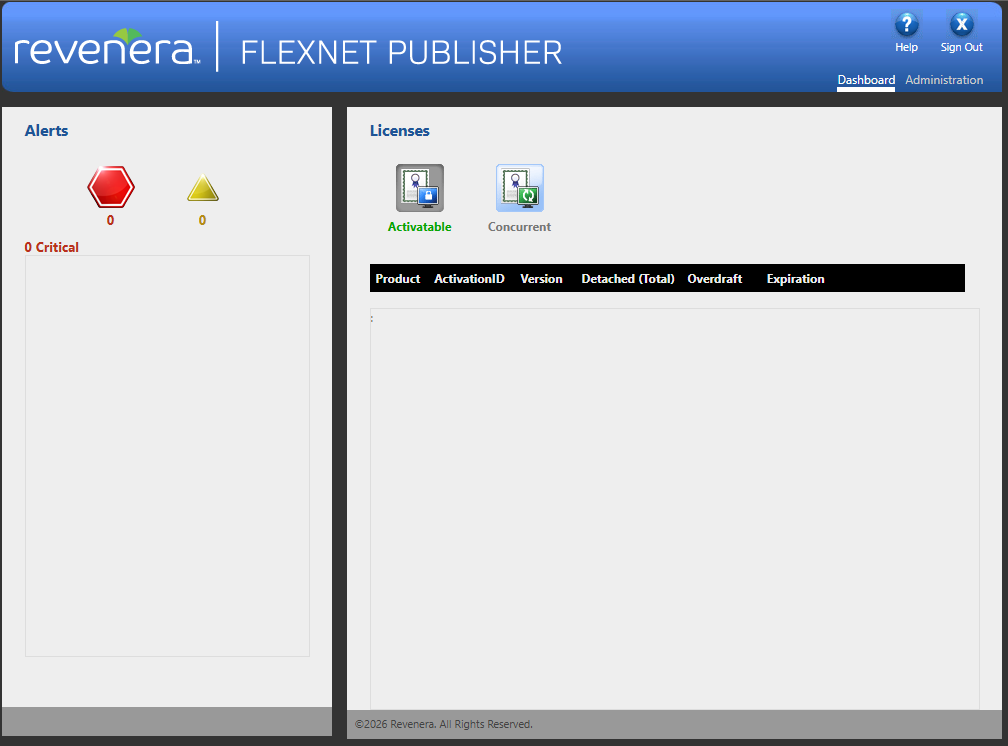
Clicking Administration will take you to the login page.
Default Admin Credentials
The default admin credentials after installing lmadmin are:
- Username: admin
- Password: admin
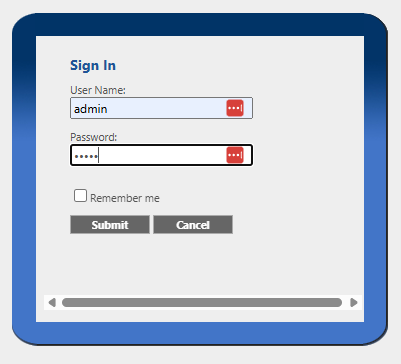
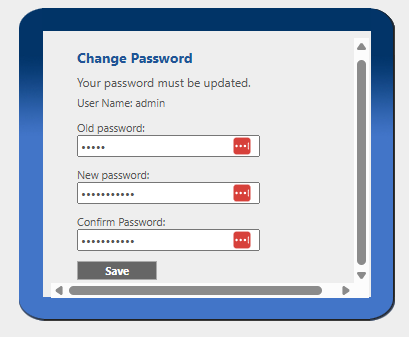
You will be prompted to update the password for the admin account.
Afterwards you will be taken to login with the updated credentials.
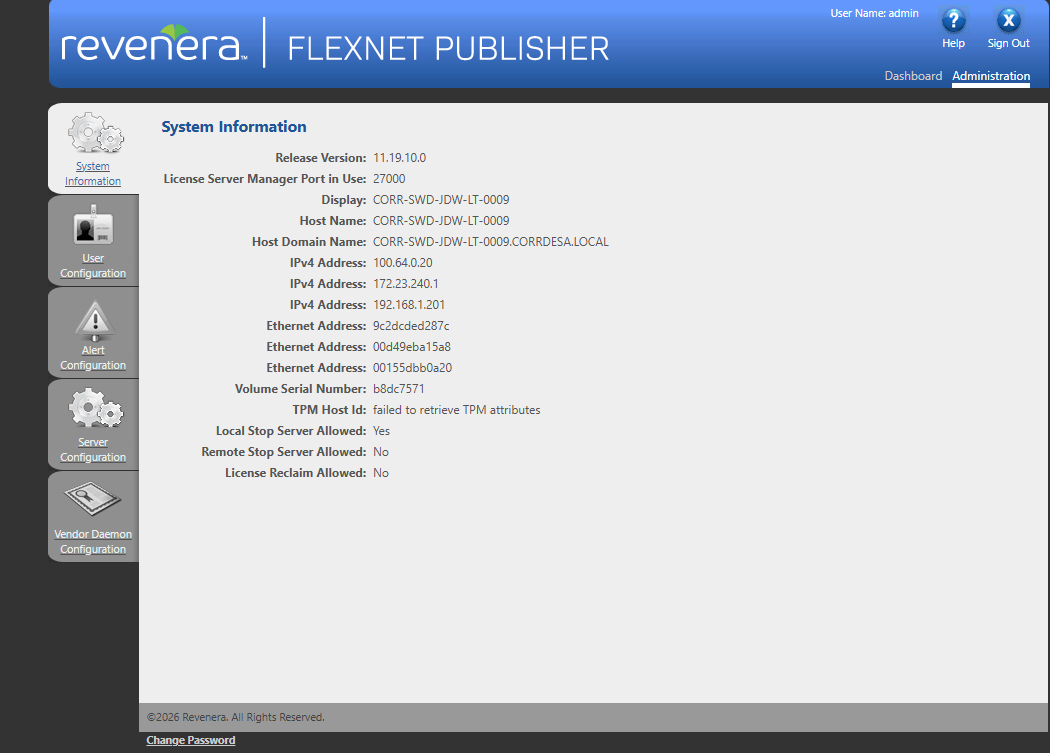
The system information page shows you key information relating to your machine/server.
The Host Name is needed when generating your license file.
Additionally your Ethernet Addresses are required for verifying the license server that the license is generated for.
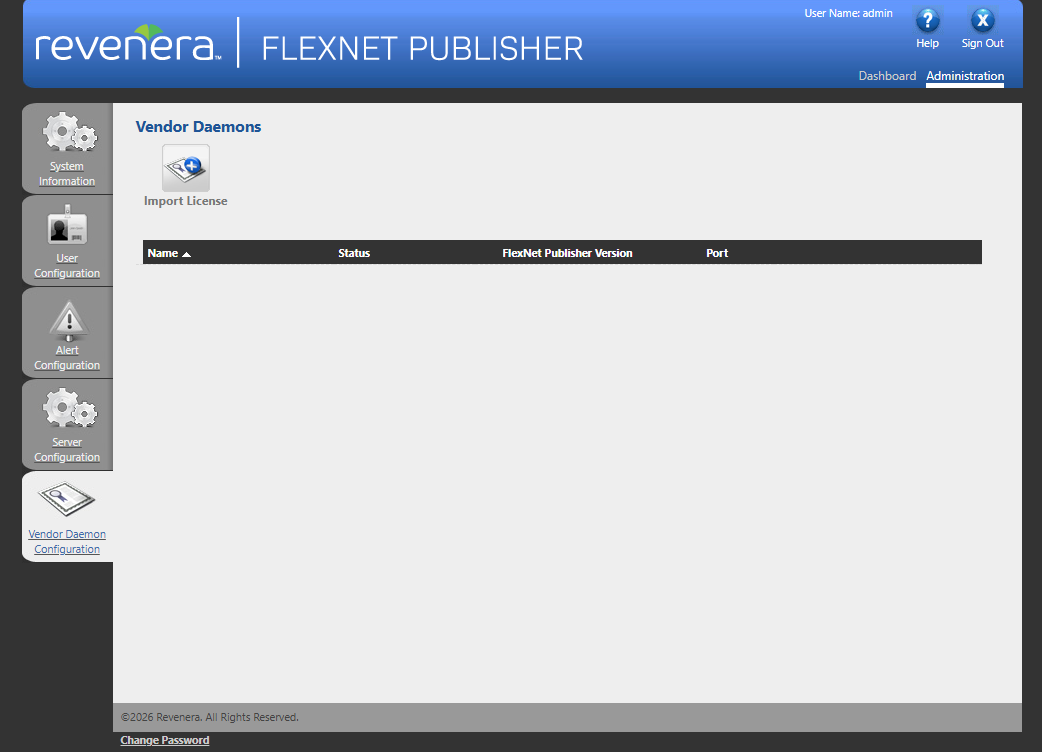
The Vendor Daemon Configuration page is where licenses can be uploaded for use with the license server.
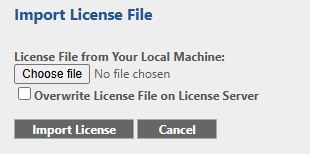
- Click Import License
- Browse for your license file, this should be file with the extension .lic
- If you're re-uploading a license after making changes to the HOST NAME of the license file check Overwrite License File on License Server
- Click Import License
After importing you should receive a notification displaying if the operation was succesful and where the license file has been uploaded to this is where you have set the Data Folder. The default location for this is: C:\ProgramData\FLEXlm\lmadmin
Additionally if it is the first time configuring a license, the associated Vendor Daemon will also be setup if the vendor Daemon is in the correct file location.

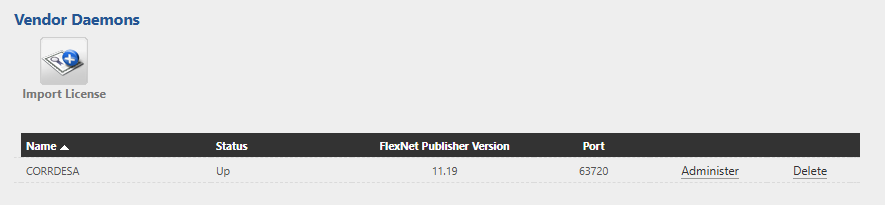
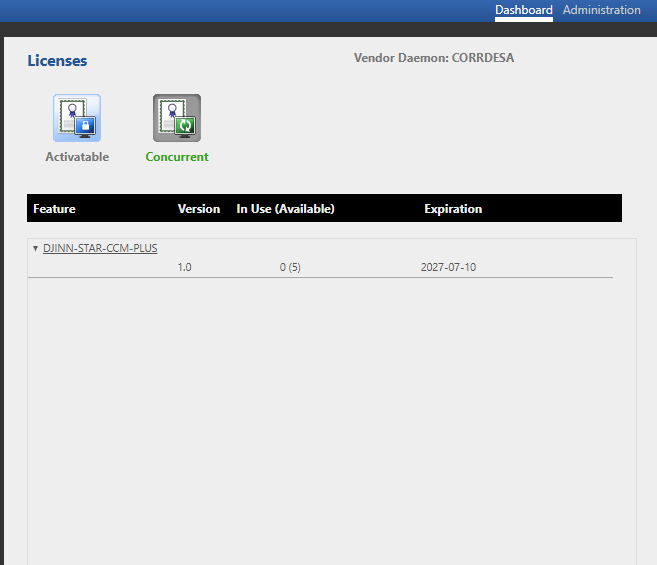
After uploading you should be able to see the status of the Vendor Daemon in the Vendor Daemon Configuration section. Additionally you'll be able to see information in the Dashboard under the Concurrent section as below.